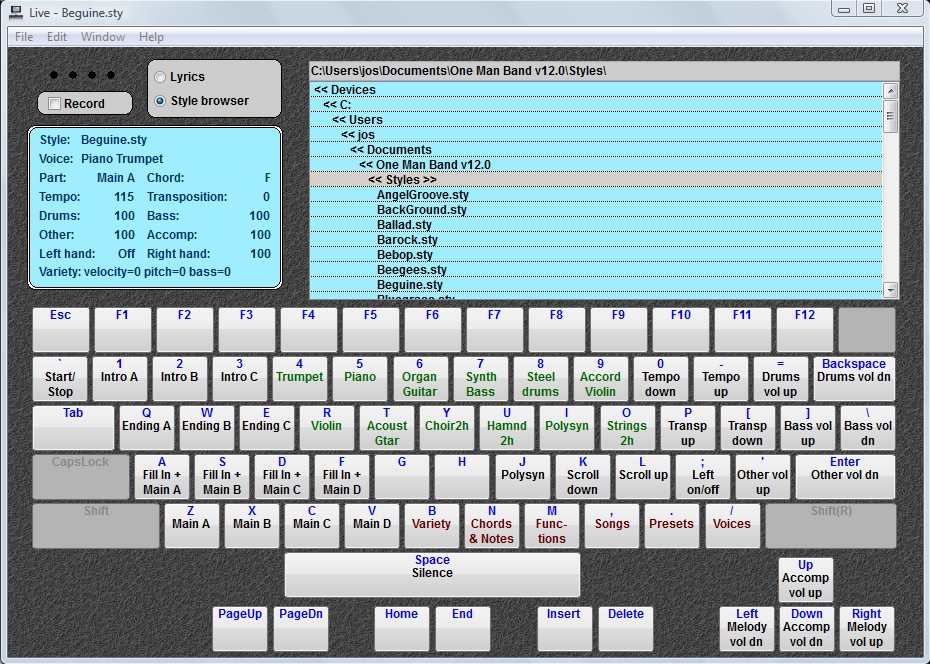
The Live Window displays the keys of your computer keyboard with the labels of their current action. Activate an action by pressing the corresponding key or click on it with the mouse. Right click to change the assignment of a key, this way you can personalize or customize your interface. Functions like switching stylevariations and adjusting volumes are labeled in black (functions can also be triggered by MIDI messages from your MIDI keyboard controller when defined in Preferences). Multivoices for the righthand melody are labeled in green, they include different types of automatic harmony based on the current chord. Menus are labeled in brown and will display a layout where each key has a new assignment. In Preferences you can select for operation thru a (second) MIDI keyboard controller or a touch screen. There is also an Android remote control app for the touch screen interface, look for JmRemote in the Google Play Store. The current version of JmRemote does not work in the latest versions of Android, but it will work fine on an Android 4 tablet that you can buy for cheap second hand.
Presets are labeled in pink and can contain all the settings that you need to play a particular song. Most important of course the style and multivoice. If chords and lyrics are included in the preset, they will be shown in the lyrics-viewer/style-browser. In stead of a style a preset may contain a MIDI or karaoke file that will start playing when the preset is selected. Karaoke text will be displayed if present.When you increase the size of the Live window then everything on screen will be enlarged. If you have a big screen then you will be able to read the text from a long distance. This will come in handy if you are playing your MIDI keyboard controller at a large distance from the screen (on stage, in the studio).
In the upperright corner you can browse thru the styles that are on your disk. Click on a style to load it, when already playing the style will switch without a glitch at the start of the next bar. The upperleft corner shows all the current settings.
Check the Record option in the upper left corner to record a MIDI file that can be processed and replayed with different styles and multivoices in the Sequencer/Arranger Window. With the Record option on, each sequence will be recorded from the start until the end of the accompaniment and saved in memory without user interaction. Until you exit OMB you have the option to save specific recorded sequences to disc.
A choice of chord fingering methods is available in the Preferences Window:
- Full fingered - Play chords on designated chord area or designated channel.
- Full keyboard - Play chords anywhere on the keyboard, no separate chord and melody area.
- Guitar - For MIDI guitar players. Only basic Major and Minor chords are recognised.
- Freeform - Any note combination will be played as chord even non-existing chords.
- Single finger Yamaha - For Yamaha adepts.
- Single finger Roland - For Roland adepts.
Style variations (Main/Fill/Intro/Ending) can be switched in different ways:
- Thru the actions that are currently visible in the Live Window.
- By assignment of functions to MIDI messages in the Preferences Window. A patch or controll message sent from your MIDI keyboard controller will trigger the function.
- With the touch sensitive option, press a chord soft to switch to Main A and hard to switch to Main D.
You can also add variety with the random velocity/pitch/bass options.
Help
topic: Live Window
Help topic: Remote Control
Warning: JmRemote only works on older versions of Android. You
may also need to switch on DirectTouch in Preferences/Remote
Back to the One Man
Band main page.